
Song AI Studio
Keep the voice, lose the music

Remove Background Music From Audio, Keep the Voice

Song AI Studio is an AI background music remover: upload an audio file and it splits the voice from the music, so you can remove background music from a vlog, talk or song. You get 2 MP3 tracks, Vocals and Instrumental. Files up to 20 MB and 8 minutes in MP3, WAV, M4A, AAC, FLAC or OGG.
Drop a song here
or

2 tracks: the vocals, and everything else.

Credits come back automatically if a run fails.

MP3, WAV, M4A, AAC, FLAC, OGG · up to 20 MB and 8 minutes · Uploads are deleted after 24 hours. Results stay downloadable for 14 days.
  • Voice and music as 2 tracks
  • Up to 20 MB and 8 minutes
  • MP3, WAV, M4A and more
  • MP3 download for each track

Songs to try the background music remover on

Eight partner demo songs where a voice sits on top of the music: spoken word, laid-back rap and close, quiet singing. That is the kind of audio a music remover splits best. These are the untouched originals, not results; press Try a sample above to hear a full run, or upload a clip of your own.
Sample
Now playing

Ashes on the Freeway

Spoken word over sub bass · Vocals
20 MB
largest file you can upload
8 min
longest clip or song
6
audio formats, from MP3 to FLAC
24 h
until your upload is deleted

How to remove background music in 3 steps

Audio in, two tracks out. Upload tools need an account, so sign in first.
  1. 01

    Add your audio

    Drop a file on Drop a song here or press Choose a file. Got a video? Save its sound as an MP3, M4A or WAV first, since only audio files go in. To test the tool, press Try a sample.
  2. 02

    Press Separate vocals

    The background music remover splits the file into a voice track and a music track. You see it move from Uploading to Separating to Finishing, and a run that fails gives its credits back.
  3. 03

    Play and download the voice

    The Vocals track comes first. Play it, then press MP3 to download it. The Instrumental track sits below it if you want the music on its own.

Who uses a background music remover

Four jobs where removing music from a recording can save the take.

Vloggers who need to swap the music

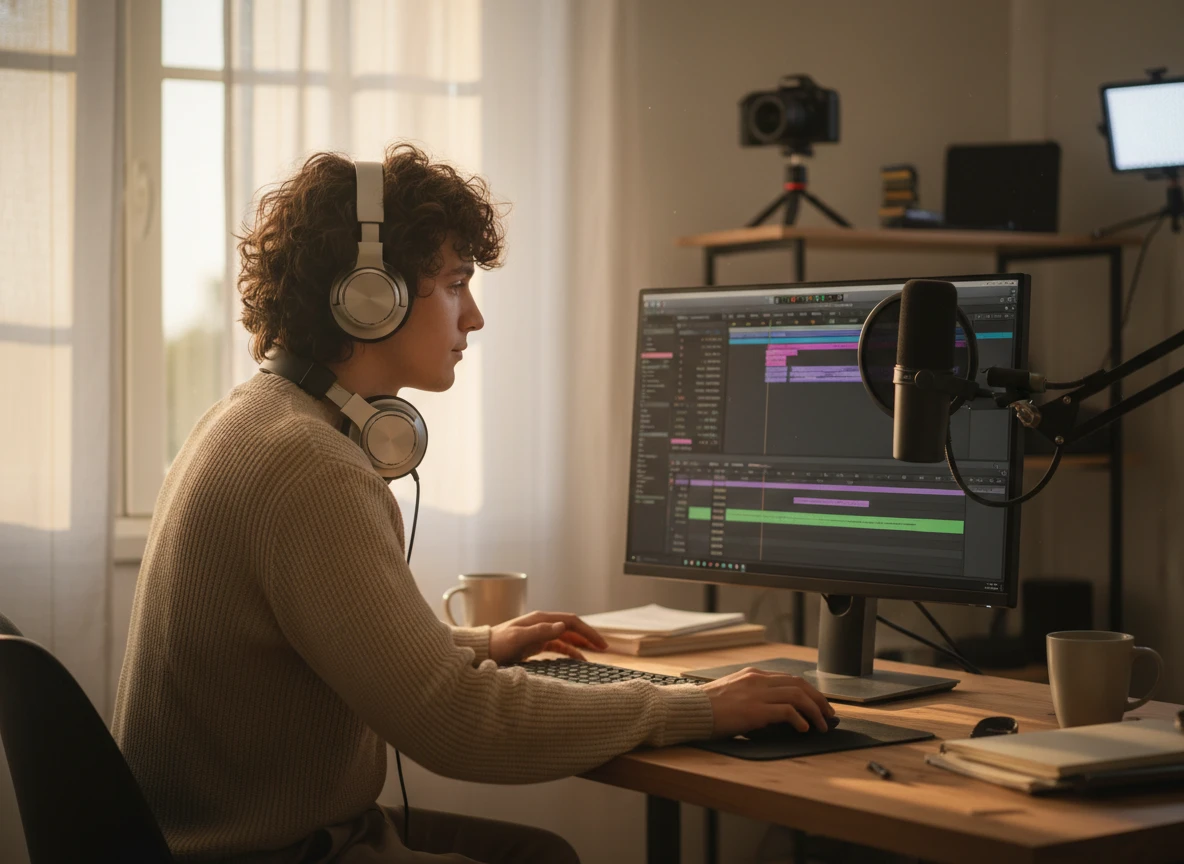
Filmed a vlog with music playing in the room, or got a clip back with a track you can no longer use? Save the audio, remove background music from it here and lay a new track under the voice in your editor.
A young creator in headphones editing a video timeline at a desk, with a microphone in front of him and a camera behind

Podcasters and interviewers

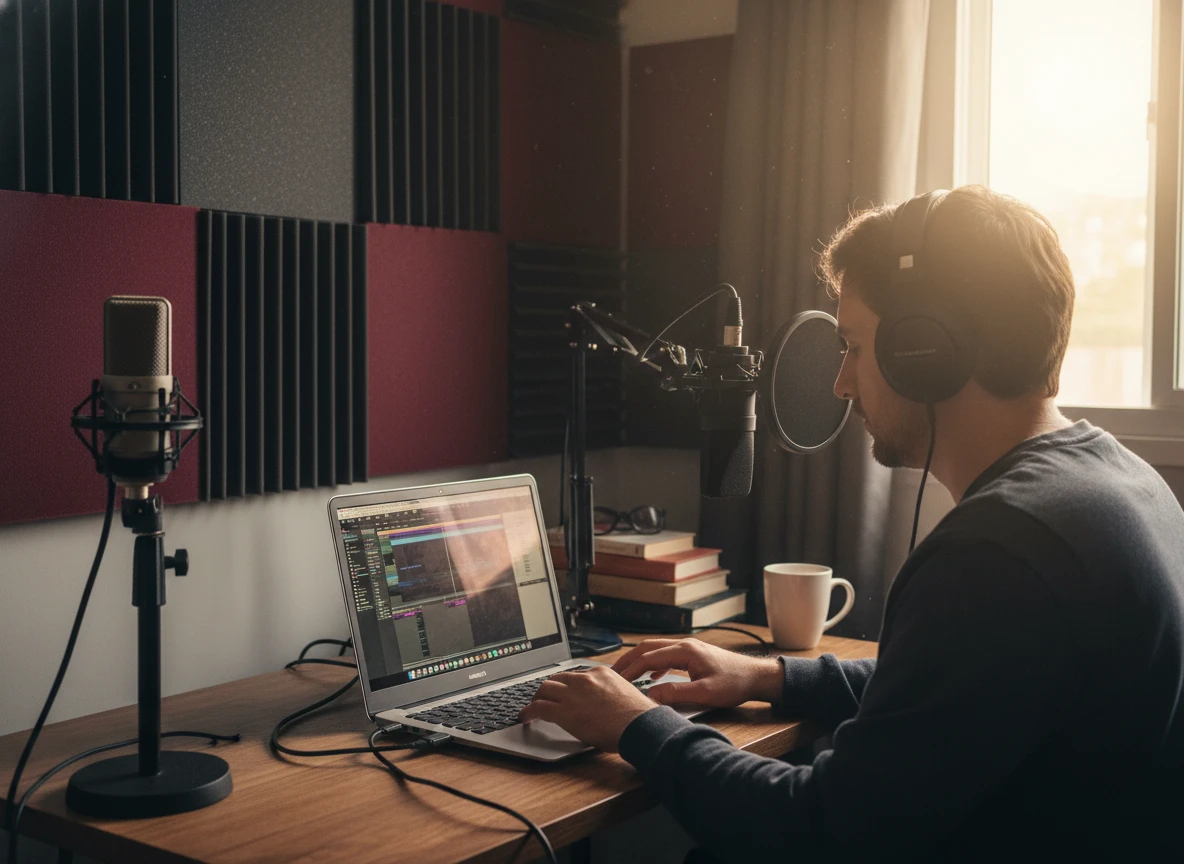
An interview recorded in a cafe or at an event often has music behind the voices. Use the music background remover to pull the speech forward, then listen closely: clear voices over quieter music come out best, and some music can stay.
A podcaster in headphones editing an episode on a laptop in a small studio with microphones on stands

Transcribers and note takers

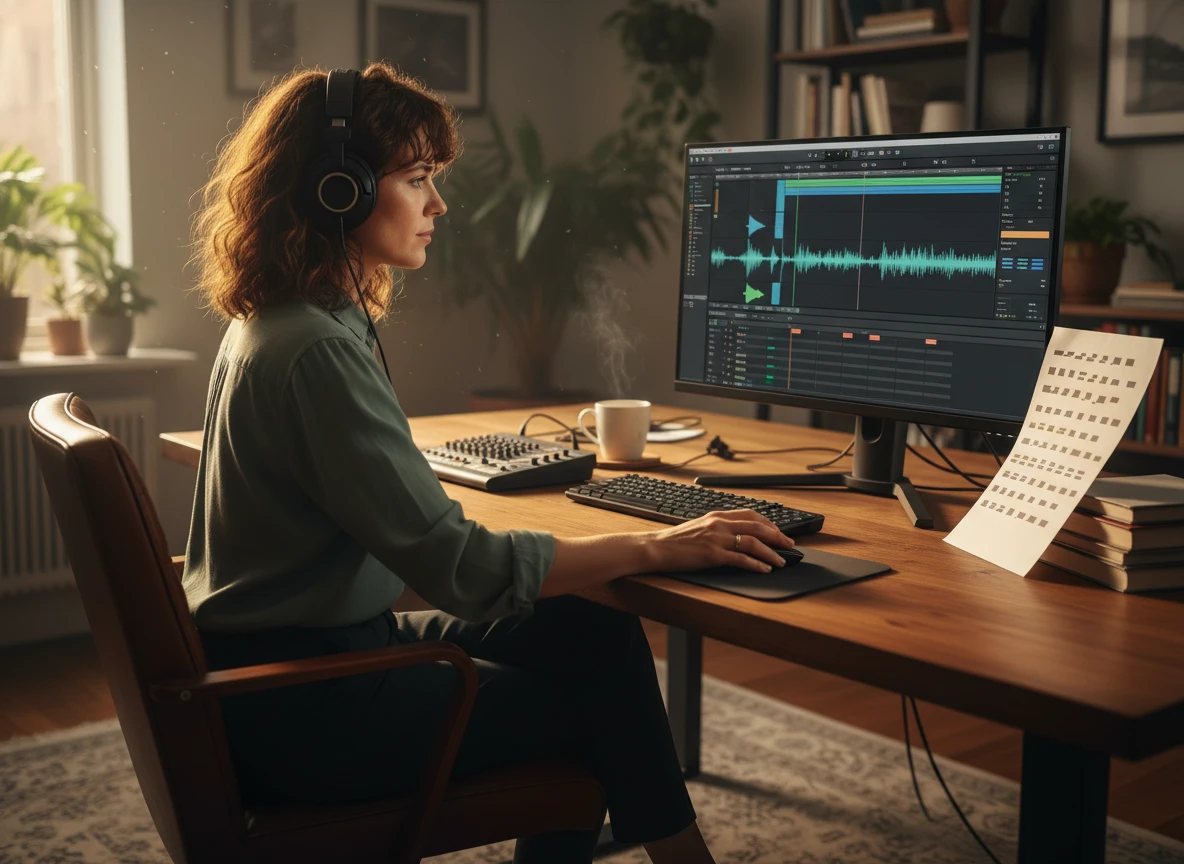
Music under a lecture, meeting or voice memo makes words harder to catch. Removing music first can make the speech easier to follow, whether you type it out by ear or feed the voice track to a transcription tool.
A woman in headphones at a desk following a speech waveform on a monitor, with notes beside the keyboard

Singers who want to take the beat out

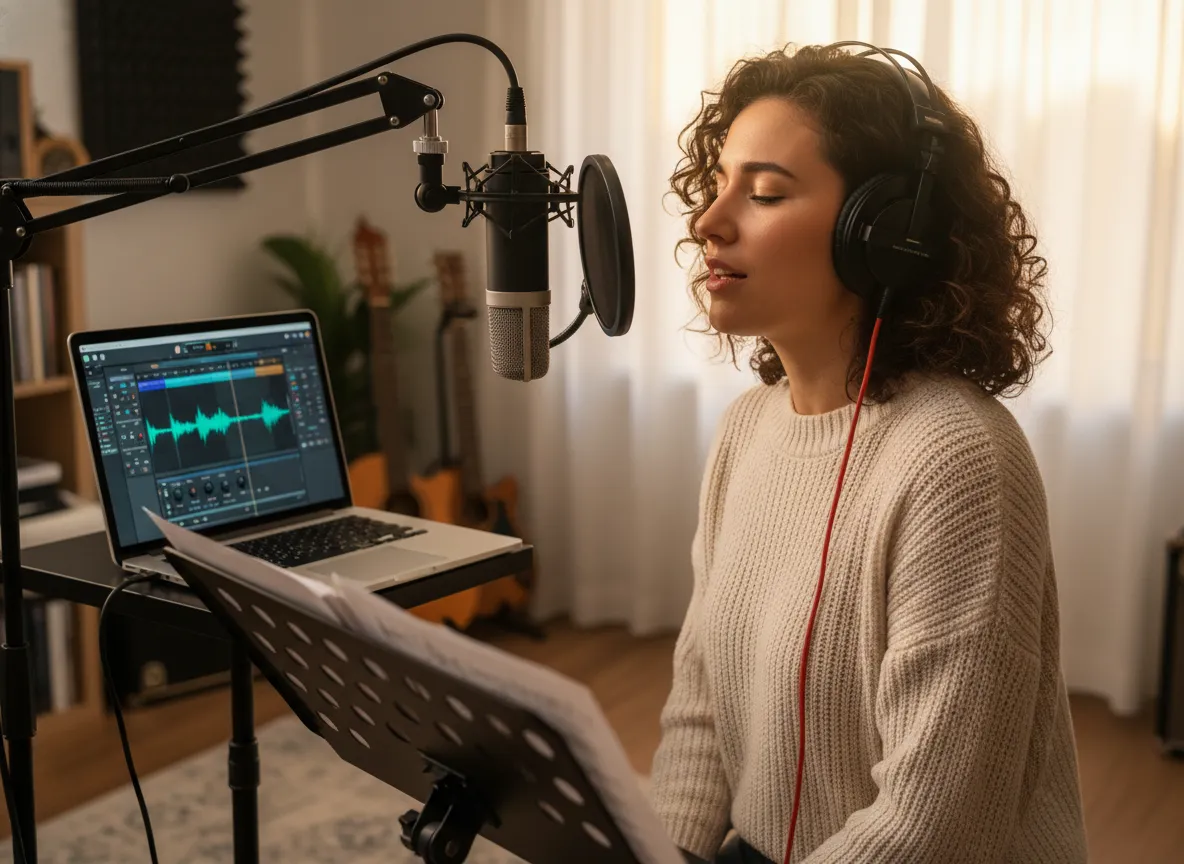
Want the singing without the band? Let the AI remove instruments from a song you can use, keep the vocal and study the phrasing. If you only want the vocal as its own file, the acapella extractor is built for exactly that.
A singer in headphones with her eyes closed at a studio microphone, a laptop showing a vocal waveform beside her

How to remove background music from audio and video

Four things decide how clean the voice comes out of the background music remover.
01

Music remover from video: save the audio first

Only audio files are accepted (MP3, WAV, M4A, AAC, FLAC or OGG), so a video needs one extra step: export its sound from your video editor or phone as an audio file, then upload that. After the split, put the Vocals track back under the picture and line it up with the original sound.

Longer than 8 minutes or 20 MB? Cut the recording into parts and run each one.
02

Clear voices split best

The separator is made for vocals in songs. A talking voice goes the same way, into the Vocals track, but results vary more than with singing. A voice that is louder than the music and recorded close to the mic gives the cleanest track; talking over loud, busy music is the hardest case.

03

Expect a little left behind

No music remover is perfect. Faint traces of the music, drum hits or reverb tails can stay in the voice track, and the voice can sound a little thinner where the music was loud. Listen all the way through before you publish.

Leftovers are easier to hear on headphones than on speakers.
04

Which background music removes cleanly?

Steady music with space around the voice, such as soft piano, acoustic guitar or lo-fi, tends to separate well. Dense mixes, heavy reverb and crowd noise are harder. Backing singers usually count as vocals and stay in the voice track. The tool targets music: it is not made to clean up traffic, wind or hum.

What happens to your files

The same plain rules every time you remove background music.

Uploads deleted after 24 hours

Your file is kept for 24 hours so the tool can work on it, then deleted. The finished tracks stay downloadable for 14 days.

Same file, no second charge

Run the same file with the same settings again and you get the earlier tracks back without paying twice.

Failed runs are refunded

If a run fails, times out or is stopped by the content check, the credits go back to your balance automatically.

Remove background music FAQ

Sign in, upload the file (or press Try a sample), press Separate vocals and download the Vocals track as MP3. Song AI Studio splits the recording into the voice and the music, and the music track downloads too.

Remove background music from your next clip

Upload the audio, press Separate vocals and download the voice as MP3, with the music as a second track. Sign in to start.
Upload audio